
Assigning and Managing Headsets in Peak
This guide provides step-by-step instructions on how to assign headsets to individuals, change assignments, and manage devices within the Peak platform.
Accessing Headset Assignment
Login to Peak: First, log into your Peak account
www.live.eave.io
Enter your email address and password
If you have not yet verified your Peak account or it's your first time logging on to the platform, please follow the steps in the ''Logging into Peak for the first time'' article - https://wiki.eave.io/article/149-logging-into-peak
Navigate to Daily View: On the left-hand side of the screen, click on the Daily View.
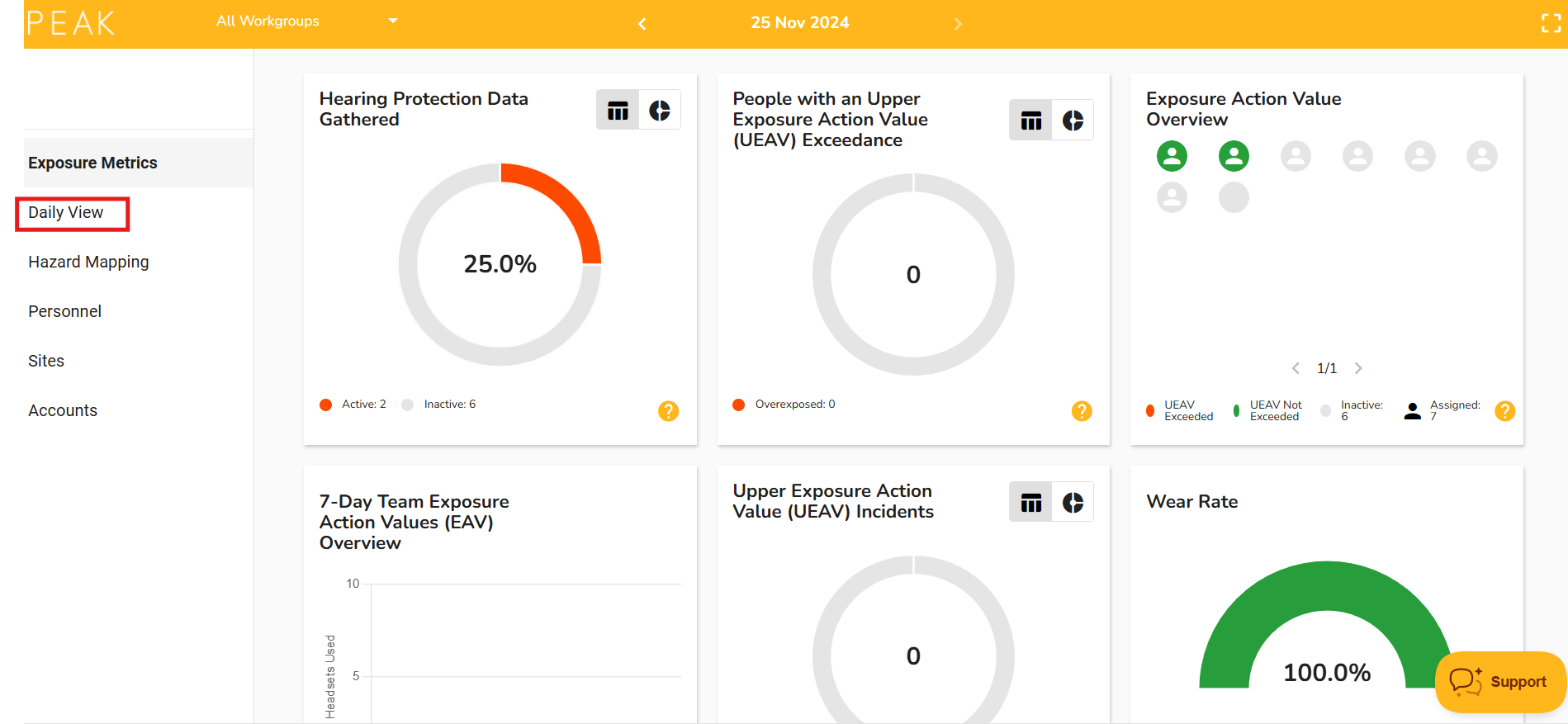
Select Headset Assignment: In the Daily View section, choose Headset Assignment. This will bring up the interface for managing headset assignments and devices.
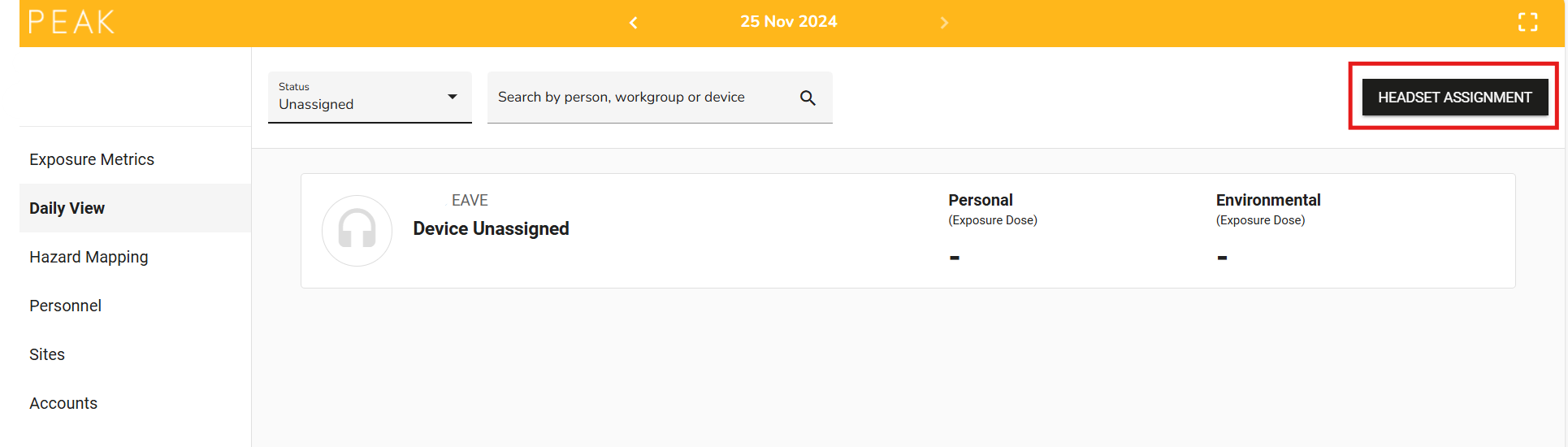
Changing Assignments
If you need to change the headset assignment from one individual to another, follow these steps:
Click on "Change Assignments": This button allows you to change the current assignments.
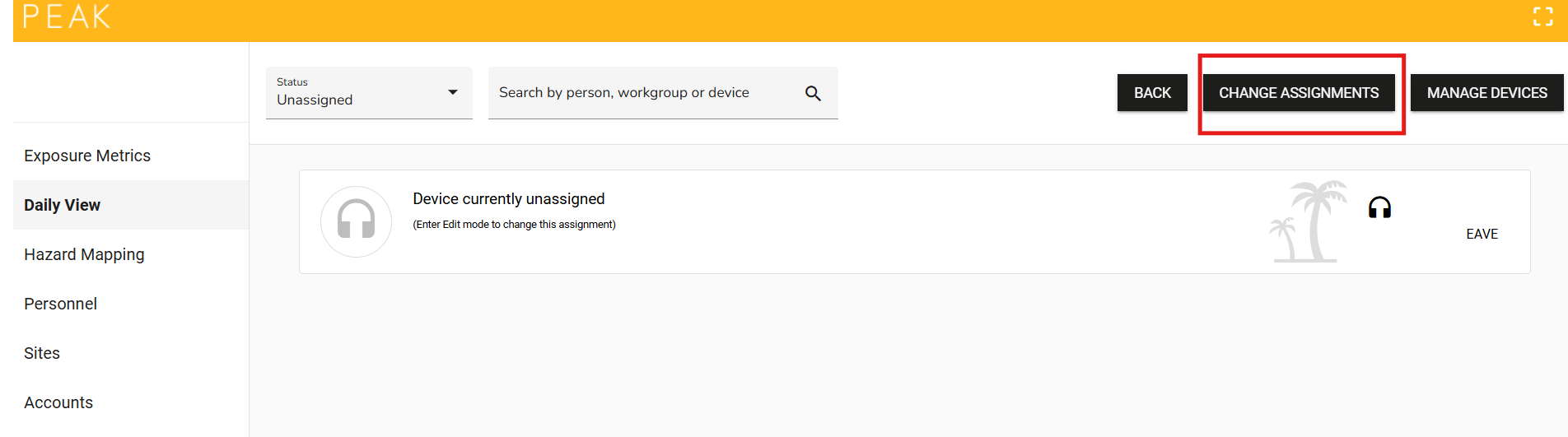
Search for the Assignment:
- Use the search bar to find a person, workgroup, or headset serial number.
- Alternatively, scroll down the list to find the specific assignment that you wish to modify

Assign a New Headset:
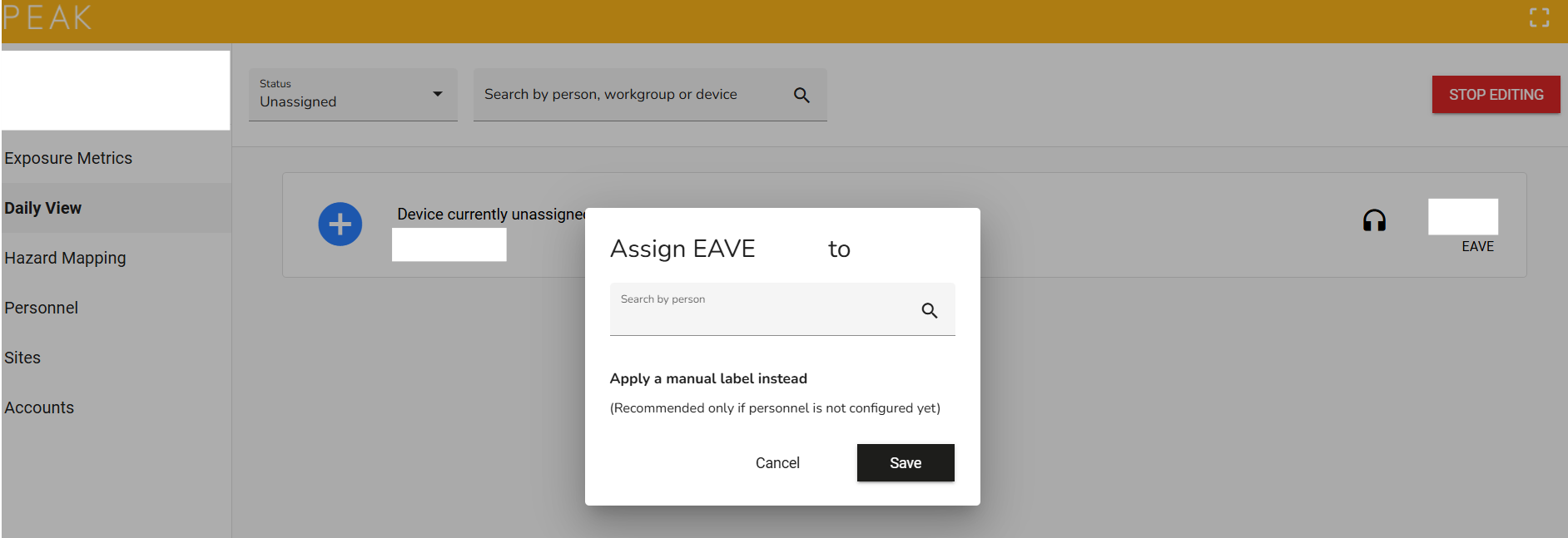
- If the headset is not assigned to an individual, you will see a plus sign within a blue circle on the left side of the screen, next to the headset ID number.
- Click on this plus sign to begin assigning the headset
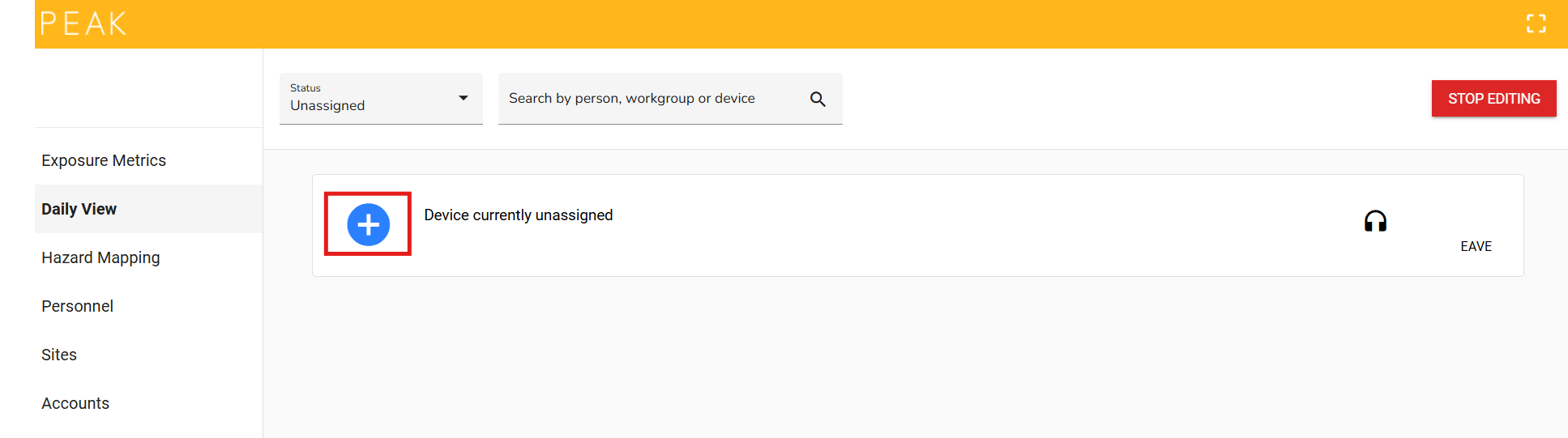
- Search for the individual’s name that you wish to assign the headset to.
- Once selected, click Save to confirm the assignment.
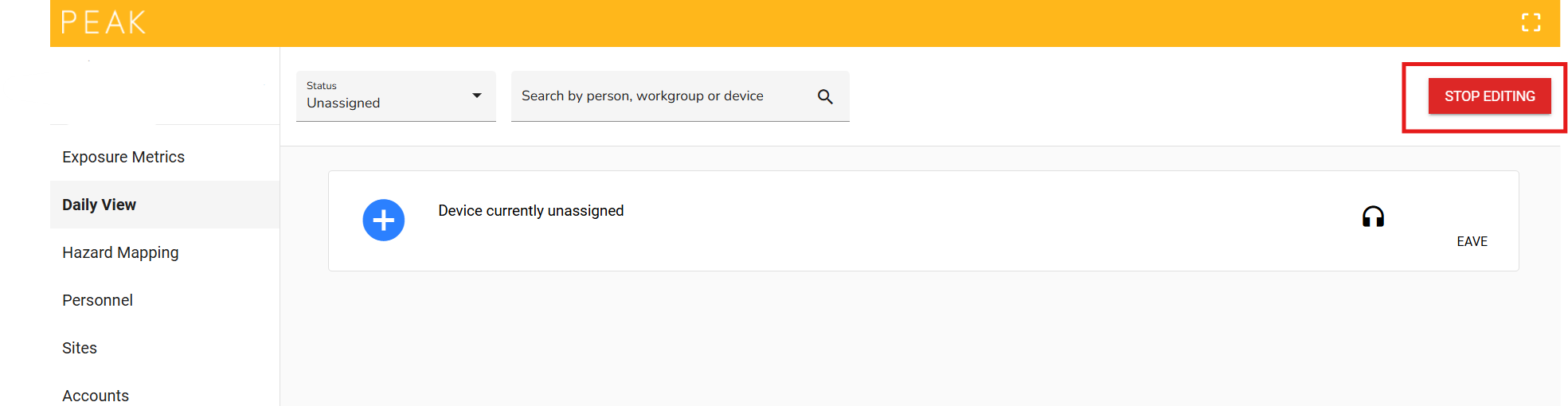
Stop Editing: After making all necessary changes, click the Stop Editing button to exit the assignment editing mode.
Note: If you have not yet created a personnel profile for the user, one will need to be created before assigning a headset to them.
Following the steps in this guide from the section ''Adding Personnel to a Work Group''
https://wiki.eave.io/article/150-creating-and-managing-work-groups-in-peak
Unassigning a Headset
If a headset is already assigned to an individual and you need to reassign it
Unassign the Current Headset:
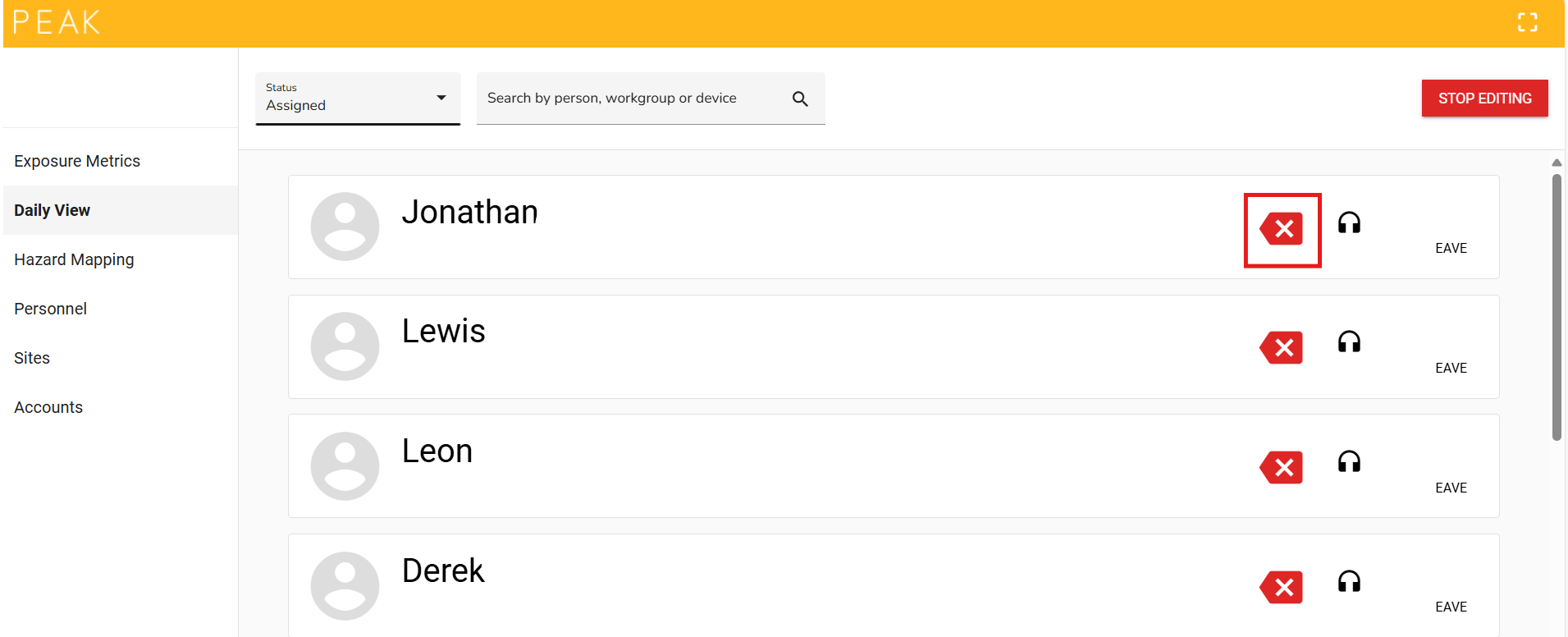
- Click on the red X button next to the headset you wish to unassign.
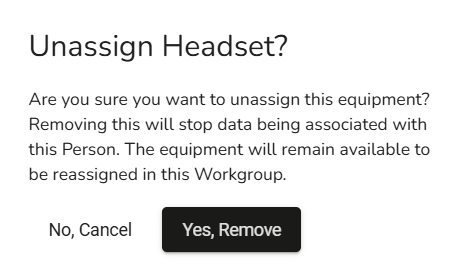
- A dialog box will appear confirming if you want to remove the assignment from the individual.
- Select Remove to unassign the headset.
- The headset will now be available for reassignment.
Managing Devices
To allocate or reallocate a headset within workgroups, follow these steps:
Click on "Manage Devices": This will allow you to manage the allocation of devices to workgroups.
- Allocating a New Headset:
- If you need to assign a new headset to a workgroup, click on the dropdown menu or use the search function to select the headset ID that is currently not in use by any workgroup.
-
Choose the relevant workgroup and click Save to allocate the headset.
Reallocating a Headset:
- If a headset is already in use and needs to be reassigned to a different workgroup, click on the Reallocate Headset button.
- Search for the headset you wish to reallocate.
- The current workgroup associated with this headset will automatically appear.
- Select the new workgroup to assign the headset to, and click Save to finalize the change.
Permissions and Access
- Different User Permissions: Depending on your account permissions, some options may not be available to you.
- If you are unable to see or access certain features, please contact your supervisor for assistance.
By following these steps, you can easily assign, reassign, and manage headsets within Peak, ensuring that each individual and workgroup has the necessary equipment to meet their noise management needs.
For further assistance, please reach out to us at support@eave.io or consult the Eave Wiki - wiki.eave.io